Smart Office

Navman Makes GPS Navigation Easier Than Ever

The latest in-car GPS navigation device from Navman has a large, bright touch-screen display for easy map and menu viewing coupled with great new software, making it one of the best GPS navigation devices today.


Click to enlarge
And while there are a lot of portable in-car navigators in the market today, some ‘affordable’ units do not have enough functions and/or features that help users on their journey. Navman’s S90i may be expensive, but it promises a lot of features that makes it a navigator worth purchasing.

Out of the box, the Navman S90i comes with the following items: the navigation unit, a leather casing, car charger, USB cable, users manual, IR remote control, mounting bracket, and a DVD that contains NavDesk and Global Map Data. It also comes with a traffic receiver, making it ready for the Suna Traffic service in early 2008.

The power button and the camera button are the only two buttons found on the Navman S90i, which means that users will have to use the touch screen to navigate through the menu. An external antenna jack, microphone jack, and headphone jack can be found on the left spine of the unit, while a lanyard loop can be found on its right spine. The memory card slot is located at the bottom of the unit and is right beside the charging / USB connection port. The unit also comes with a 2 mega pixel camera (for use with NavPix) and built-in speakers for audio / speech output.


Performance:

We suggest users to read the Quick Start Guide before turning the unit on for the first time to have an idea of how to get started. This is due to the fact that the main menu has a lot of options (My Home, Favourites, Recents, Map, Address, POIs (Point-of-Interests), navPix, Traffic, Fuel, Preferences, Phone, Parking, Food, SOS, Tripmeter, Tourist, and Cash) and can be overwhelming at times, especially for the first-time user.

Planning your first trip with the S90i is quick and simple. All one has to do is to tap the Address icon, enter the city/area, the street address, the house number, and press the “go” arrow key for the unit to start calculating the route. The unit also has an ‘Intersection’ mode that will lead a user to the intersection of two roads. The unit was able to pick up a GPS signal in less than a minute and was able to provide the fastest route from our SmartHouse office to my house in an instant.

The screen was bright and various points of interest (POIs) were clearly displayed on the unit. Tapping on any POI allows a user to navigate to that POI, check out its details, view other POIs close to it, avoid that area, add to the trip/itinerary, or set that particular POI as the starting point for the trip. Other visual icons include the next instruction (Right: George St), the direction and distance of the next turn, a next turn arrow, a speed indicator, a status bar, a distance and time information, as well as the main menu button (found on the lower left side of the display), cancel route button, zoom options, and map button (found on the right side of the screen). There is also an expandable icon located on the lower right side of the display that brings up other options like Mute/Unmute, TMC, Bluetooth, Battery indicator, and GPS information.

Users can also place their home address and save it on the unit’s My Home option, view recent trips, view various points-of-interests (POI), and adjust various settings like route options, volume, screen display, Bluetooth functions, and POI alerts.


Click to enlarge
The NavDesk software that comes with the S90i
In addition, users can find the nearest petrol station, parking area, restaurant, tourist spot, emergency buildings like police stations or hospitals, and even the nearest ATM machine by pressing the said icons on the main menu. These options are handy especially for users who are travelling in an unfamiliar place, as the Navman S90i can instantly take you to any key POIs.

The Navman S90i can also pair with your mobile phone via Bluetooth connection. The Navman S90i was able to synchronise with the phone and automatically imported the contacts. Calling people can be done by either clicking on the list (phonebook) or by manually dialling the number (phone dialler). We were able to talk to the person on the other line without much of a problem, with conversations being loud and clear.

Finally, the Navman S90i has a clever way of taking you to various places without the need to remember its exact address with its NavPix technology. The camera automatically launches when the camera cover is slid open and any photos taken will automatically be tagged and stored in the Navman. Users can also visit the Navman NavPix website to upload, download, and share images to other owners, increasing your photo database. So the next time you want to go to a tourist spot (like the Sydney Opera House), all one has to do is to click on the NavPix option, select the Sydney Opera house photo, and just press the Go arrow key.

The Navman S90i gave us a little more than five hours with a single charge, but will last shorter if paired up to a phone and is used for its handsfree function. Charging the unit requires a user to hook up the unit to the computer (via USB) or inside the car (in-vehicle charger), as there is no AC adaptor included in the package.


Conclusion:

The new Navman S90i is one of the best in-car navigation systems we have seen to date. Its widescreen display makes it easy to view, while its features (POIs, Text-To-Speech, Navpix, Bluetooth, and shortcuts to Petrol, Parking & Emergency Services (SOS)) are accessible with a touch of a button. And with a traffic antenna included in the box for the upcoming Suna traffic service, the Navman S90i is a step ahead of the competition.

Specifications:

Hardware
Weight: 200g
Size (mm): 79 (H) x 139 (W) x 20 (D)
Processor: Samsung 2443 / 400 MHz
Memory: 2GB internal Flash memory 96 MB SDRAM
Memory Expansion: SD/MMC
GPS receiver: SiRFstarIII
Battery: Rechargeable integrated Li-ION battery-up to 5 hrs life (depending on usage)
Display Size & Type: 4.3″ touch screen
Display Resolution WxH: 480 x 272 pixels
Integrated NavPix Camera: 2 Megapixel

Software features
Software: SmartST 2008 navigation software
Pre-installed Speed and red light camera alerts
Integrated Bluetooth: Hands-free calling
NavPix: Navigate to pictures
Navman Desktop Manager: Mileage Reporter, NavPix album
Over 500,000 POIs (Places of Interest)
Voice-guided instructions
Text-to-Speech: Spoken ‘next turn’ road names
Multiple route options
Easy to use address searching  

Navigation views
Turn-by-Turn
Route Summary
3D moving map
2D map view  

Mapping
Sensis Whereis 2007 (R14)

————————————
Navman S90i | $799 |  | www.navman.com.au

For: The Navman S90i’s widescreen, camera (for NavPix), navigation software, POIs, easily accessible hotkeys, fast route calculation and recalculation, mobile phone hands-free functions, and TMC compatibility is what sets this unit apart from other navigators.
Against: Users must connect the unit to the PC or charge it inside the car as Navman did not provide an AC adaptor
Conclusion: One of the best in-car navigation systems we have seen this year.

Sony Expands Vaio Line-Up

Sony Australia is expanding its Vaio line-up by launching the LM and NR series, as well as adding a new colour to its existing CR series.

Sony Australia’s Senior Product Manager for Vaio, Hiro Ishikawa said, “Sony is proud to introduce these new notebooks to the popular VAIO line-up. The LM series carries the hallmarks of the innovation and style Sony is known for. The VAIO NR series is a functional and easy to use home notebook, and the Premium Gold notebook is sure to lead the next fashion trend!”

Sony Australia’s Senior Product Manager for Vaio, Hiro Ishikawa said, “Sony is proud to introduce these new notebooks to the popular VAIO line-up. The LM series carries the hallmarks of the innovation and style Sony is known for. The VAIO NR series is a functional and easy to use home notebook, and the Premium Gold notebook is sure to lead the next fashion trend!”

Vaio LM series
Sony has now turned the home PC into an elegantly designed entertainment centre with the Vaio LM series notebook. This new notebook features a style reminiscent of Sony’s Bravia LCD TVs, with the Vaio LM sporting a 19-inch screen that is framed by a transparent bezel to blend into the surrounding environment. For ultimate integration, the Vaio LM series can be wall-mounted and features wireless keyboard, mouse and remote control, Sony says.

The Vaio LM series is designed to be a stylish entertainment hub that doubles as a TV, with an in-built TV tuner, high quality speakers, and sound output with a built-in subwoofer. The LM also comes with a 1.3 Mega Pixel that can be used for video conference calls where the whole family can join in.


Vaio NR series
According to Sony, it has retained the popular features of the Vaio N series and added a number of style and specification upgrades to create a notebook with neat, compact design, easy-to-use layout and simple functionality.

The Vaio NR series is perfect for students or frequent home users with a 15.4-inch LCD screen, full-pitched keyboard and high performance Core 2 Duo processor. However, this notebook is also designed for fun, with new AV Mode buttons for quick access to entertainment programs and original VAIO software – VAIO Movie Story and VAIO Music Box, the company says.

VAIO CR series
With metallic accessories a hot item this summer, Sony has decided to add a Premium Gold notebook to the colourful Vaio CR series. With the VAIO CR series, you can express yourself with a colour that matches your unique personal style:

Premium Gold – the latest hot metallic to join the CR series
Blazing Red – with black interior, designed for those who want people to look twice
Indigo Blue – bang on trend, this notebook comes in one of the hottest runway colours this season
Pure White – offering a modern take on the classic look
Luxury Pink – mixed three pink shades to give a soft luminous glow
Aroma Black – a sophisticated take on this style-led model

Pricing and Availability:
The Sony Vaio LM (VGC-LM18G), Vaio NR (VGN-NR17G), and Vaio CR Premium Gold (VGN-CR25G) series will all be available starting mid-November 2007 and will have an RRP of $3,499, $1,599, and $1,899 respectively.

See: www.sony.com.au

Samsung Launches Widescreen Phone

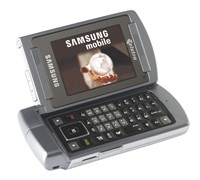
Samsung Mobile aims to make mobile TV bigger than ever before with the unveiling of the new Samsung Widescreen mobile phone.


Click to enlarge
Samsung claims that its new Widescreen phone features the ‘world’s best mobile display and top-of-the-range sound quality’ for sheer viewing pleasure. The Samsung Widescreen sports a 2.3-inch LCD display that can be opened sideways and dual speakers, giving consumers the ability to watch their favourite programs in stereo sound and maximise their overall viewing pleasure

The Director of Samsung Mobile, Josh Delgado said, “Every so often we are lucky enough to witness a revolution in mobile phone technology and the Samsung Widescreen is right at the forefront of this revolution. As a leader in mobile phone design and technology, Samsung continues to push boundaries and improve services to bring consumers real benefits. The Samsung Widescreen mobile is just what consumers are looking for in a Mobile TV and entertainment device.”

With a unique dual flip action, the Samsung Widescreen mobile allows consumers to make standard calls with the traditional flip action. Opening the phone sideways and consumers will have a mini-laptop with a full QWERTY keyboard and broadband speeds of up to 7.2Mbps across 98 percent of Australia’s population. Consumers can also access the new Mobile FOXTEL electronic programming guide (EPG) and surf 33 channels, as well as program their Foxtel iQ set-top box to record their favourite programs, even when they’re away from home.

“The Samsung Widescreen mobile phone lets consumers maximise their time or simply enjoy a moment of downtime. Internet and Mobile TV have never been more accessible. Consumers can now enjoy Mobile TV with a twist,” added Delgado.

In addition to the fastest mobile internet and Mobile TV, the Samsung Widescreen offers a range of additional features like a 2-megapixel camera, stereo MP3 player, and Bluetooth capability.

RRP: $899

See: www.samsung.com.au/mobile

Pioneer Keeps Track Of Employee Attendance

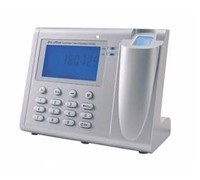
Pioneer Computers has launched a time and attendance recorder that aims to keep track of an employees time records.


Click to enlarge
The DreamVision Finger Print Time and Attendance Recorder is an affordable, consistent and user friendly solution to replace traditional card units. With several verification modes including ID + password, ID + fingerprint or fingerprint only, it is reliable and tamper-proof. No more logging in for someone else to avoid being found late for work, or phantom employees who don’t even turn up and claim attendance, the company says.

The unit is small and smart looking, measures 160 x 130 x 90 mm and is easy to install, maintain and operate. It can also recognize and store up to 512 fingerprints and keeps records of up to 32000.  Its low cost makes it economical for small business and it also has the capacity to cater for larger corporations.

The DreamVision Finger Print Time and Attendance Recorder will have an RRP of $299 and is available from Pioneer Computers Australia Pty Ltd.

See: www.pioneer.net.au

Vista-Supported Projectors From NEC

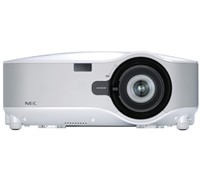
NEC’s new LCD projectors (NP1150, NP2150, and MP3150) not only has a Reon-VX video processor, picture-in-picture functionality, and support for wired and wireless LAN, the company also claims that it is compatible with Windows Vista’s “Windows Network Projector” function.


Click to enlarge
NEC’s National Sales Manager of Visual Display, Steven Macdonald said, “NEC invests heavily in research and development pioneering new display technologies based upon the requests and needs of our customers.  We offer our customers simply the best innovation, providing projection systems that deliver additional features guaranteeing optimal image quality. We pride ourselves on being able to predict our customers’ needs and bring products to market early leading the way in projector technologies.  Many of our university customers are now expressing interest in Vista compliant projectors and we are happy to offer the NP1150, NP2150 and NP3150 ready as of today.”

According to NEC, the new projectors are powered by the Reon VX Video processor, which uses Silicon Optix’s Hollywood Quality Video (HQV) technology. The chip uses full 10-bit signal processing, per-pixel motion-adaptive algorithms and a multidirectional diagonal filter that ensures the sharpest and most detailed images possible, the company says.

The new projectors also support Windows Vista’s “Windows Network Projector” function, allowing a user to run presentations via any network-connected Windows Vista PC by connecting the projector into a wired LAN. Additionally, users can plug a USB mouse and keyboard into the projector and remotely operate any networked PC through the projector using the Windows Remote Desktop function.
 
The new NP projectors also have a manual lens shift mechanism that allows an image to be projected both vertically and horizontally. NEC also says that the projectors will have five types of optional lenses (in addition to the standard lens) to accommodate a variety of environments, including conference rooms, halls and exhibitions.

Pricing and Availability

The NEC NP1150, NP2150 and NP3150 projectors are now available and will have an RRP of $5299, $6699, and $7799 respectively.

See: www.nec.com.au

Back Up Your Digital Life With OneTouch From Maxtor

With the advent of digital camera, camcorders and music, data back up has become even more important. The new Maxtor OneTouch external storage device will help you back up your digital life, and let small businesses do a bit more besides.

Maxtor’s OneTouch 4 Plus brings more than just back up storage to the table – it also has other programs like encryption, synchronisation, and a system recovery function to make it an all-round storage device.


Click to enlarge
As we save our photos, videos, documents and other files unto our hard disk drives, we are at the risk of losing them all should our hard drive fail. Luckily for us, there are a lot of companies out there that offer external hard drives with backup softwares to store and safeguard files. Maxtor’s OneTouch 4 Plus is one of those external drives that can store music, photos, videos, and games and comes with a OneTouch button that backs up important data.

The OneTouch 4 Plus comes with a USB and FireWire cable, an AC power adaptor, and the OneTouch Plus device. The device is lightweight because of its hard plastic construction, while its black and aluminium finish gives it a ‘tough’ look. The OneTouch button is cleverly placed at the front of the unit and emits a light as soon as it is plugged, letting users know that the unit is functional.


Performance:

Hooking up the OneTouch to the PC for the first time will install the Maxtor Manager software, an application that has various programs like My Drives, Backup, Sync, and SafetyDrill (for Windows only) to maximise the OneTouch 4 Plus.

Under My Drives, one may be able to customise the OneTouch button to back up (which is the default), Synchronise, or open any executable program in the PC. Power settings can also be adjusted, putting the OneTouch drive into power-saving mode after being inactive for a set number of minutes. There is also a function called Test My Drive that does a quick test to make sure that the device is working properly, as well as a Check for Software Update function that checks for new versions of the Maxtor Software.


Click to enlarge
The OneTouch 4 Plus OneTouch button
By default, pressing the OneTouch button will launch the Backup software that does a simple backup for the “My Documents” folder at a set time. In addition, advanced options like manually setting the folders (e.g. Backing up the “My Documents” folder, a music folder located in the main drive, as well as other folders from a slave drive), file extensions, and the day and exact time when the unit will do a backup is also available, giving users with a lot of customisation options.

The OneTouch can also keep the latest files in sync between two computers with its Sync function. The Simple Sync automatically syncs the “My Documents” folder, while the Custom Sync provides the option to select different folders that will be synchronised. After synchronising your folders from the first computer, the only thing a user has to do is to connect the OneTouch to the other computer to complete the synchronisation.

The Maxtor OneTouch 4 Plus also has a DrivePass function that protects your drive with the help of a password, as well as an encrypted folder to protect your office files and documents from unauthorised access. Passwords are required for both functions so users must always remember their passwords to avoid data loss.


Click to enlarge
Maxtor Manager’s SafetyDrill Program
What’s great about the OneTouch 4 Plus is its SafetyDrill program: a function that mirrors your hard drive to the OneTouch, allowing anyone to restore the whole system in an event of a system crash. By creating a SafetyDrill copy, users only have to boot up the Maxtor SafetyDrill Recovery CD (with the Maxtor OneTouch connected), select the SafetyDrill copy that will be restored, and click the Restore button. Do take note that the SafetyDrill function only works with Windows and is not compatible with the Mac OS.

Conclusion:

If you need a simple backup and storage solution for your home or small business, then the Maxtor OneTouch 4 Plus is definitely a product worth looking at. It has an easy-to-use backup and sync software, has an encryption and password functions that will protect your confidential files, and can fully restore your system with ease thanks to its SafetyDrill feature.

Product Specifications:

Requirements:

PC
– Pentium III, 500Mhz equivalent processor or higher
– Microsoft Windows Vista or XP
– 256MB RAM or more
– Internet connection for software updates
– CD ROM drive from SafetyDrill Disc

Mac
– Max OS X 10.4.7-10.4.9
– 256MB RAM or more
– Internet connection for software updates

Performance Specs:
– USB 2.0 and FireWire 400/1394a compliant
– Spindle speed 7200 RPM
– AES 256-bit software encryption

Package Contents:
– External hard drive with pre-loaded installation software
– Quick start guide
– Power adaptor
– USB 2.0 cable
– FireWire 400/1394a cable
– Maxtor SafetyDrill Recovery CD

Product Dimensions: 63.5 x 152.4 x 171.45mm
Weight: 1.11 kg

————————————
Maxtor OneTouch 4 Plus (750GB) | $449 |  | www.maxtorsolutions.com

For: USB and FireWire connectivity; Ease of use; Sync, Backup, Encyption, and SafetyDrill functions; Warranty
Against: No Ethernet connection
Conclusion: A simple to use product but is packed with features to keep all your files safe.

Nokia E51 Launches On Telstra Network

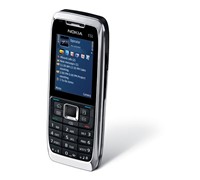
Nokia has announced that its E51, a mobile phone for the business-oriented user, will be available on Telstra’s Next G Network starting this month.


Click to enlarge
The E51 will have features like ‘one touch’ keys for easy access to contacts, calendar and messages, includes an FM Radio tuner, music and multimedia players, and comes with a 2 mega pixel camera. Users can also watch various programs from channels like CNN and Sky News on the go as Telstra has included its Foxtel Mobile service on the E51. In addition, the E51 will also have a ‘dual-mode’ handset function that claims to deliver desk phone calling features such as extension dialling, hold, transfer and conferencing, all on a mobile device, the company says.

Nokia’s General Manager for Australia and New Zealand, Shaun Colligan said, “This is our third Nokia handset on the Telstra Next G network in recent months. Together with Nokia 6120 and the Next G Nokia N95, the Nokia E51 offers a range of choice for consumers looking for the Nokia that suits them on the Next G network.”

Other features of the Nokia N51 include:

  • A home screen including user-selected icons to the most used applications
  • One Touch keys with one-click access to key functionalities including email, contacts, calendar and the home screen
  • Set-up wizard offering step-by-step guidance for setting up email accounts.
  • Integration with a wide range of business email solutions, including Nokia Intellisync Wireless, Blackberry Connect as well as Mail for Exchange to communicate with Microsoft Exchange Server, and consumer email
  • Streamlined email reading experience with easy access to attachments
  • Dedicated Email key on the front cover, indicator light for new email, and a preview window to the latest email on the home screen to help keep up with email when on the move

RRP: $679

See: www.nokia.com.au

Lexmark Wireless All-In-One Printer Put To The Test

All-in-one printers can do everything from printing documents to scanning, faxing, copying, and even printing photos from memory cards. We see whether the new Lexmark all-in-one printer with WiFi will be a worthy addition to your small office or home office.

Instead of purchasing a fax machine, a scanner, and a printer separately, businesses often purchase an all-in-one printer to save money. Companies like Lexmark have been providing consumers with affordable all-in-one printers that can print a lot of pages per minute and provide various ‘services’ that give users an edge. Lexmark’s X6570 is an all-in-one printer that not only provides a complete office solution for users, but also has a wireless printing function for easy printer sharing inside the home or office.


Click to enlarge
The X6570’s main control panel
The Lexmark X6570 is a white and grey printer that sports a small profile. The main control panel with a 2-line display is located up front, hosting various keys like 2-sided printing, menu, power, copy mode, scan mode, fax mode, photo card mode, and a number keypad for fax functions. Users can also find an SD/MMC/xD/MS memory card slot, a CF card slot, and a USB port (for Pictbridge) on the right side of the unit, allowing users to print photos without turning on the computer. Users can find the duplex cover (for printing on both sides of the paper), USB port, power supply with port, line-in and extension out telephone jack (for fax functions), and a Wi-Fi adaptor at the back of the unit.

The printer has a lot of functions that make it a good addition to any home office. It can print photos and files, scan images, fax important papers, copy documents, and can even print back-to-back with its 2-sided mode. It can also connect wirelessly to a network for wireless printing, allowing users to print anywhere in the home.


Click to enlarge
Performance:

After taking all the contents out of the box, getting the printer to work is as simple as following instructions. It took us less than 10 minutes to put the ink cartridges in, connect the phone jacks, install the software, and make the printer run via USB connection. Users can also opt to connect the printer to the wireless network, allowing anyone with a Wi-Fi connection to print their documents anywhere in the network’s vicinity. The setup for this is simple as well, with users only having to connect the printer to the computer in order for it to automatically locate and connect to the network. A Wi-Fi indicator light in front of the printer will show users if the printer is connected to the network (green), if it is not connected to the wireless network (orange), or if there is no wireless card present (no colour).

At default settings, we were able to print 10 text-filled pages in a minute, although we were able to reach the claimed print output of 28 pages per minute when adjusted to quick print mode. We were also able to print a coloured 4 x 6-inch photo in 1.5 minutes, while an A4-sized photo took about 4 minutes to finish.

While the text printouts were clear, we could not say the same for its photo printouts. Photos were not as sharp as we expected it to be, with colours being dull and dark. The only way to go around this is to purchase a separate photo cartridge when printing photos as it significantly improves the quality of prints. When using the Photo Card function (where you put your memory card, CF card, or PictBridge-enabled phones), users will have to print a proof sheet first to see the photos stored in the card. From there, one can choose to print all the photos, the last 20 photos, photos from a date range, or a specific photo.

The scanning, fax, and copy functions of the X6570 were easy to use as the instructions were all displayed on the X6570’s screen. We have also found the 2-sided print button to be handy when printing documents as it automatically prints on both sides of the paper. This gives the printer a ‘greener’ approach, saving paper and the environment as well.


Click to enlarge
Lexmark’s Productivity Studio
Lexmark has also included a Productivity Studio that includes functions like scan photos, copy photos or documents, send a fax, scan and e-mail a document, and create a poster or greeting cards. Users can also setup and diagnose the printer from this software and also setup and manage faxes. Other document management programs such as converting documents to PDF and converting documents to text for editing are also available, making it a program worth using most of the time.

Finally, the installation software comes with a Lexmark toolbar for Internet Explorer (a Firefox version is also available and can be downloaded at the Lexmark website) that allows a user to print a web page normally, in black and white, plain text (with pictures removed), or print the photos found on the webpage.

Conclusion:

Considering its RRP of $299, the Lexmark X6570 is an all-in-one printer worth recommending for its ability to print, scan, fax, copy, wirelessly connectivity, as well as its two-sided printing functions, productivity software, and Internet Explorer toolbar. Just remember to purchase a Lexmark Photo cartridge ($42.99) when you are planning to print photos to get the most out of this printer and you will be just fine.

Product Specifications:

Print Technology Thermal Inkjet
Color Technology 4 Color Inkjet – Cyan, Magenta, Yellow, Black
Optional 6-Color Photo Printing

Function:
Color Copying
Color Printing
Color Scanning
Faxing

Maximum Print Speed (Draft, Black): Up to 28 ppm
Maximum Print Speed (Draft, Color): Up to 24 ppm
Maximum Print Speed (Normal, Black): Up to 10 ppm
Maximum Print Speed (Normal, Color): Up to 4 ppm
Maximum Copy Speed (Draft, Black): Up to 24 cpm
Maximum Copy Speed (Draft, Color): Up to 23 cpm
Print Resolution, Black Up to 1200 x 1200 dpi
Print Resolution, Color Up to 4800 x 1200 dpi
Scan Resolution, Enhanced Up to 19,200 dpi
Scan Resolution, Optical 600 x 1200 dpi

Operating Systems Supported

Microsoft Windows XP
Microsoft Windows XP Professional x64
Microsoft Windows Vista
Apple Mac OS X (10.4.4-10.4.x Intel)
Apple Mac OS X (10.3.x-10.4.x Power PC)
Microsoft Windows 2000 5.00.2195 or later
Microsoft Windows Vista x64

Standard Ports

USB 2.0 Specification Hi-Speed Certified
PictBridge Certified Port
USB pass-through via PictBridge port
802.11g/b Wireless

PictBridge Certified USB Port

Digital Media Memory Card Compatibility

CompactFlash I & II
Sony Memory Stick, Memory Stick PRO
Secure Digital (SD) Card
MultiMediaCard (MMC)
Microdrive
xD Card
Sony Memory Stick Duo (with adapter)
Mini Secure Digital (Mini SD) Card (with adapter)
Sony Memory Stick PRO Duo (with adapter)
SanDisk TransFlash Memory Module (with adapter)
RS-MMC (with adapter)
xD Card Type M, Type H
MultiMediaCard (MMC) Mobile (with adapter)
Micro Secure Digital (Micro SD) Card (with adapter)

Size (H x W x D): 202 x 454 x 350 mm

Weight (kg): 8.0 kg

Product Warranty: One Year Replacement

————————————
Lexmark X6570 Wireless All-In-One | $299 |  | www.lexmark.com

For: Multi-functionality; Easy set-up; Wireless printing function; Can be used without turning on the PC; Memory card ports and PictBridge; Price of printer; Price and variety of ink cartridges
Against: To have better quality photo prints, users must purchase Lexmark’s Photo cartridge which costs $42.99.
Conclusion: The Lexmark X6570 is a printer that can handle most home/office tasks without the need for wires.