Smart Office

Optus Nabs First 3D Smartphone LG Optimus 3D, Coming July

LG is releasing the world’s first 3D smartphone early next month to Australian consumers.The LG Optimus 3D is the first smartphone to include glasses-free 3D and 3D video capturing, with two 5 megapixel cameras retrofitted into the device.

On the 3D side, the cameras can pick up 3MP 2048×1536 pixel resolution images in 3D and records at 720p at 30fps in 3D. In 2D mode, image quality and video recording is improved.

The user interface has been customised for the 3D experience on the 4.3 inch WVGA display. A ‘3D Hot Key’ on the phone’s side switches between 3D and 2D content on the fly. There are five 3D-dedicated content categories, including the Gallery, Camera, Games & Apps, YouTube 3D and 3D Guide.

The phone as a whole is speeded up by its ‘tri-dual’ configuration that sees it running dual-core, dual-channel and dual-memory on its 1GHz dual-core ARM Cortex-A9 processor, boosting performance over other smartphones currently utilising 1GHz processors. It also holds 8GB storage (not including added microSD storage) and 512MB of DDR2 RAM.

Find full pricing and availability in Australia over the page.


The slimline phone sports similar but slightly larger dimensions to the recently released Samsung Galaxy S 2, shaping up to 128.8 x 68 x 11.9mm and weighing only 168 grams.

On the downside, it comes shipped with Android’s Froyo (2.2) operating system, rather than the latest 2.3. This will be upgradable to 2.3, but just when the update will be available is yet to be announced.

The LG Optimus 3D will be available through Optus from “early July” for $0 up front on Optus’ $59 Cap. Otherwise, the RRP sits at $799.

Fujitsu Pushes Hard For Notebooks With 16 New Releases Including Pro Tablet Model

Growth in the PC industry may be slowing as tablets cannibalise notebooks and netbooks, but Fujitsu is still churning out a myriad of high performance notebooks with no signs of fatigue.Fujitsu PC Australia has refreshed its Lifebook catalogue with a slew of 16 new models for Spring that take on mid- to high-end notebook computing, with a little for business and a little for consumer tastes.

Prices start under $1K but range up to nearly $3K for models that include multi-directional tablet screens for industrial professionals. What they all have in common are Intel Sandy Bridge Core processors.

One of the chieftains of the range is the Lifebook E751, aimed at the business user with its range of security and safety features. It features a shock sensor, fingerprint sensor, ‘Trusted Platform Module’ and Intel vPro technology. Around the back sits a hot swappable bay for adding extra battery power.

This LED-backlit screen model comes in two versions – the Intel Core i5 for $1788 or a hefty premium of $2288 for the i7 processor.

Another bigwig in the line-up is the T901, retrofitted with a bi-directional back-lit LED display for the tablet experience on a notebook. Designed with the industrial professional in mind, the touch screen supports multi-touch with an added stylus for precision writing and other smaller details.

This top-dollar model crests the line-up, topping off at $2888.


Rounding out the business-class are a few other models that stand out in a few different ways. There’s the lightweight but hardened LH701 that runs in at $1388, featuring a 1.9kg anodized shell wrapped in an aluminium case for one.

There’s also the more notable flagship models, the SH761 and S761 for $2288 and $1988 respectively, which come in with portability and productivity in mind at 1.6kg with one of the highest capacity batteries in its class and a unique ventilation system.

Consumers are spared a thought too, with models like the LH531, AH531 and A531 starting at prices below $1,000 for generic computing with a touch of style. The AH531 features an extra-large keyboard with 10-key number pad and spill-resistance while the LH531 comes in an array of high-gloss colours like garnet red and cherry pink for the visually conscious buyer.

Review: Is Kensington’s Orbit Trackball A Mouse Killer?

Kensington’s Orbit Wireless Mobile Trackball is just one device in the long lineage of trackballs but houses a handful of added perks to make it a worthy opponent to the conventional mouse.For those unfamiliar with the long-standing peripheral, trackballs are mouse replacements that look almost like an upside-down version of the antiquated mouse-ball-operated optical mice of the earlier decade. Instead of being pushed along like a conventional mouse, trackballs lie stationary as a free-flowing ball dictates the on-screen cursor by the user’s fingertips.

The Kensington Orbit follows the same formula, but with added 2.4GHz wireless for a strong, unwired connection and a touch sensitive ring around the trackball for ease of scrolling through documents or web pages.

The ambidextrous trackball is symmetrical so can be easily configured for either left or right hand use. This leads us onto the customising TrackballWorks software that allows for macro key creation, key function assigning, pointer speed and scrolling speed.

The only components of the trackball are the large but sensitive left and right keys, the trackball itself and two touch-sensitive strips that wrap around the trackball like a ring at fingertips’ reach. Otherwise, there’s also an on/off button under the unit – pairing the device is as simple as plugging the small USB dongle into the desired PC and then turning on the device.


The TrackballWorks software allows the typical ‘right click’ key to be configured, and a right+left key click to be mapped also. Pointer speed can be adjusted, including acceleration from fast to slow to control for larger swipe speeds. Macros can be set from the pointer menu, where alt, shift or ctrl can be held to enable ‘slow pointer’ mode or to control single axis movement. Scrolling speed is also customisable, with an ‘inertial scroll’ option for more fluid motion.

The pad is ergonomically shaped in a way that makes it a breeze to use, with the right pressure for buttons and perfect alignment of the touch-sensitive panels. These panels make documents and web pages a breeze to scroll through, with the right tweaking letting you hot swap between pages with a simple swipe of the finger.

The ball itself easily pops out and makes for simple cleaning if need be. Its smooth but slightly patterned to stave off fingerprints while remaining slight on the touch.

The Trackball probably won’t replace your home mouse, but if you sift through countless multi-page PDFs or are a design professional with the need for an alternative pointer, the Orbit is quite the catch. It could do with some more buttons for extra customisable hot-keying, but the simplicity has its own shine to admire.

Review: Hitachi Touro Mobile Pro Blends The Cloud & Physical Storage With Top USB 3.0 Performance

We’re greeted with a skinny device that works hard while remaining user-friendly as a pro storage accessory while you’re on tour.The drive is slim for a hard disk platter that spins at 7200rpm, and is also somewhat stylish for a hard drive. The unit is finished in a reflective, black coating on top and bottom, with a silver/grey rim around the edge. There aren’t any physical buttons, and the only light is an unobtrusive blue glimmer that pulsates from under the black plastic while the hard drive is spinning.

Connectivity is limited to the single USB cable which supports USB 3.0 and 2.0 standards, and no external power is needed. While being backwards compatible with USB 2.0 ports, the true value comes with linking this hard drive up with a USB 3.0-ready computer to get value per GB (otherwise this device can be easily trumped in USB 2.0 value by 2 terabyte offerings for under $100 to be found.

The drive and its single USB cable

Transferring small files like a folder full of music and Word documents will see fair USB 2.0 performance at around 30MB/s, but the USB 3.0 speeds make the Touro Pro more noteworthy.

Over the page for read/write speeds and the Mobile Pro’s clever backup solutions.


The hard drive will read out files onto a computer at up to 100MB/s if transferring large files like single videos, while maxing out closer to 90MB/s for smaller files. Write speeds on the drive peak at just under 70MB/s with larger files, dipping slightly for multitudes of little files.

You’ll get the best performance out of the Touro Pro if you’ve got one of the latest higher-end notebooks that ship with solid state drives (SSD) rather than hard drives and are USB 3.0 compatible. Not only will the speeds cap out higher with transfers, but the need for portable storage is greater for SSD users since they tend to cap at 256GB.

One of the top features of the drive is its backup software that blends local backup and cloud backup services. The software’s interface is minimalist and runs almost like an Android app in its layout. Folders can be added and removed from the local backup settings and intervals for backup can be scheduled from automatic to daily and on specific times set by the user.

Hitachi has thrown in 3GB of free cloud storage with the hope of enticing users to upgrade to 250GB of online storage for $49 per year. Backup for cloud storage runs in the same way as local storage, though a cap can be put on bandwidth usage and the max size of uploaded files (to be conscious of upload/download limits).

From here, data can quickly be restored from either local or cloud back up at the click of three buttons: Restore, either Local or Cloud Backup, then restore again. The 3GB free won’t get you very far on media storage, but is more than enough for storing sensitive data and important documents in a safe, retrievable place.

The Hitachi Touro Mobile Pro comes in two sizes: 500 GB and 750 GB. On a per-GB basis, you can get better, but buying this drive is a lot like going for an SSD drive over a bigger hard disk drive in your home PC – its speed and reliability outweigh the storage size. Backup is simple, automated and blends the cloud and the physical. At the same time, storage is lightweight and very portable while not being too small to bring a heap of media with you on the go.

The Hitachi Touro Mobile Pro next to a Samsung S2 1TB hard drive.

The Mobile Pro is a bit longer, though noticably thinner.

New Storage Tech From TDK Doubles Hard Drive Space

Japanese company TDK Corp has developed new technology that more than doubles the recording density of hard disk drives.
The magnetic-head technology used is expected to bring new, high-storage hard drives to the market by 2012, according to the Nikkei Business Daily.

This recording density refers to how many bits of data can be stored along a given length on the hard disk platter. By increasing this recording density, more information can be stored on the same sized drive.

While the paper did not specify the new recording densities, the new drives to come from this updated technology will come in sizes over 1 terabyte, recording up to 1,600 hours of HD digital video.

The end result of updated hard drive technologies are higher capacities across sizes, with 3.5 inch home PC hard drives ramping up capacities as well as 2.5 inchers for notebooks.

Researchers in Singapore have also been pushing the boundaries of hard drive storage, pushing up recording densities over a Terabit per inch-squared last month.

HP’s PC Biz Here To Stay: Will Either Sell, Separate Or Stay The Same By Year’s End

Hewlett-Packard’s PC business is not set to disappear, with the company looking to either sell the $40 billion business, turn it into a separate company or to resume business as usual by the end of this year.
Marketing head of HP’s Personal Systems Group (PSG), Darren Needham-Walker, today pushed the point that the industry-leading PC company will not pull out of the consumer market.

The move follows a global effort on HP’s side to reassure channel partners and media alike that its PC business is still running ‘business as usual,’ with similar announcements being made in Thailand and the UK over the last two days.

In a bid to clarify the mid-August announcement that HP would back out of the consumer business, Needham-Walker has stressed that HP is still running with its consumer division and investing in the WebOS platform.

Company executives are set to decide on whether to sell the PSG division, separate it into a new company or to keep the business running as it already is, but Needham-Walker says that the consumer products will keep selling in any case.

He stated that if the consumer wing were to be separated into its own company, it would be the top Windows-based PC company with a third of all Windows PCs under its belt, with around $40 billion revenue.

His statements come as the company today previewed a new range of all-in-one PCs aimed at consumers, set to be available within the coming week.


He added that the WebOS platform is far from dead and that ongoing investment is being poured into its development.

When Palm was acquired by HP, it was solely for the WebOS operating system, and not much investment was put into the physical implementation side of the business when the TouchPad was developed, he explained. The company has gone back to the drawing board, with licensing of the WebOS software to other hardware developers a potential option on the horizon.

As for a potential selling off of HP’s PC division, chipmaker Intel, which holds the biggest portion of chips in the PC market, said it would not bid for HP’s PC business if it went up for sale.

“As far as us being a candidate – no thanks. We like where we are in the ecosystem. We’re a silicon maker. As for competing with our customers, I don’t see us going there,” said Intel chief Paul Otellini at the Intel Developer Conference in San Francisco.

iTwin Invisible Cables Now Pair Macs & PCs

The unique iTwin USB device that securely and remotely shares files across computers has just received a Mac-friendly update.
Once a PC exclusive, the double-ended USB keys that turn two computers into a virtual cloud space can now connect between Mac OS X and Windows computers.

Check out the full review of the iTwin here.

iTwin CEO Lux Anantharaman says that an ‘iTwin Multi’ is set to be released this October. With the iTwin currently limited to connecting two computers, this Multi device bundle will allow more computers to join the file-sharing link.

The iTwin works by creating a virtual private network (VPN) with a highly secure AES 256-bit encryption between two Internet-connected computers. The software is housed on the two USB sticks and, when attached to two computers, a virtual shared drive is formed.

Unlike physical storage, no data is stored on the USB keys that sit in each connected computer, and unlike the cloud, all your data is stored locally rather than on someone else’s server.

The iTwin is currently distributed in Australia by New Age Trading and sells with a one-off price of US$99.

BlackBerry PlayBook: Professional-Grade Tablet Contender Or Another Imitation?

It’s been a while since our first look of Research In Motion’s contender in the newly-sprouting tablet market, and since then we’ve get acquainted with the quaint device and feel out the kinks. In our hands we’ve held the Wi-Fi-only 16GB model.

On face value, it’s a beauty to the eye and touch with its hard, rubbery exterior, small frame and weighty presence. In fact, for such a small device at just 7.6 inches wide, it surprisingly weighs 425 grams (while larger screen tablets like the iPad 2 only weigh up to 600 grams despite their size).

The interface is beautifully simple, and trumps Apple’s own ‘less is more’ ethos while not limiting functionality. Without any permanent buttons, the PlayBook instead relies on finger swipes that function across the 7 inch screen, beyond the borders. A thick, black bezel borders the screen, and touch controls continue on into the blank spaces.

Windows are opened from one of the bottom categories (like Favourites or Media) and pop up in the middle of the screen. Tens of windows can be opened without slowing the pace of the 1GHz processor, but the PlayBook will secretly close windows you’re neglecting if you’re pushing it too hard.

From here they can be switched between by swiping from right to left (or vice versa) from the border onto the screen. When you’re over it, simply swipe up to throw the app into the abyss. App-specific settings are brought up by sliding down over the top bar. Settings are brought up by ‘peeling’ down over the top corner. The keyboard, by peeling up over the bottom corner. So on, so force. You fall into it quickly, and it’s more intuitive than other tablets once you’re in the swing of things.


While RIM has been touting its mini-computers as ‘professional-grade,’ this enterprise-centric focus seems misdirected given a quick comparison to the competition.

Android Honeycomb tablets feature a range of context-sensitive navigational buttons at all times, and a folder system that mimics the Windows PC set up but in a simpler format to suit touch screen computing. This functionality is ideal for document-heavy, business computing.

On the other hand, the dedicated PlayBook OS (which I love for reasons I’ll look at later) is much simpler, clear-cut and intuitive, with less buttons to take confusion out of the picture. This Apple-leaning direction works a charm for the device, though doesn’t make it much of a ‘professional-grade’ tablet.

This is followed by a lacking file directory. While other operating systems will allow you to traverse files either stored on your device or a paired device, regardless of whether or not you can open them on the device you’re using, the PlayBook will only locate items that can be opened.

That means that if you use the PlayBook even as portable storage, you’ll only be able to look at what you have stored when it’s plugged into a PC (unless you have Wi-Fi file sharing enabled which is a handy feature). It plays out a little oversimplified in this way.

But for the greater consumer audience that is gobbling up cheaper tablets, the PlayBook seems right down their alley. It’s simple to sync and share content to and from the device, it has long battery life of up to 10 hours that’ll easily last through the day, it’s small and legitimately portable (rather than just being a laptop screen minus keyboard), and the controls are all simple without being restrictive – and it’s cheap at just under $600.


Web browsing is fluid and functional, almost a replica of the PC browsing experience. Websites open quickly, run solidly and even Flash content runs as smoothly as it would on PC. The only issue, as with all touch screens, is that many Flash websites aren’t made for touch screens so the ‘mouse-over’ functions don’t work properly.

Video playback is fluid, even when running Full HD content, and the 7 inch 1024×600 resolution  screen picks it up in sharp quality with fairly crisp sound to compliment the picture (mostly only for vocals though). It sports a fair range of video and audio file types too, including popular AVI video files and even low-quality mobile files like 3GP videos.

The utilities like word processing and spreadsheets are set out like simplified version of Microsoft Office programs, and run the same file types so that everything’s compatible with the home or office PC (a +1 for the ‘professional-grade’ tab).

Typing is breezy and comfortable on the screen, without the need for the large screen size of bigger tablets. Keys are spread out far enough and big enough to make sure you don’t overlap on buttons, and the 7.6 inches of width allow you to hold the unit like an GameBoy and type away with two thumbs relatively comfortably (especially in portrait orientation).

On that note, orientation goes four ways, and has a lock feature if you’re planning on moving around a little and want to keep one direction on the screen.

Connectivity isn’t the hallmark of this Wi-Fi-only model, with no ports apart from mini USB for charging and PC connection, and mini HDMI for mirroring the PlayBook on a TV screen. But then there’s BlackBerry Bridge that is one of the hallmarks.

BlackBerry smartphone holders can rejoice at this point in the review, because they’re given the royal treatment here. As a Wi-Fi only model, there’s no SIM card to grab internet on its own, so you’ll always need to be connected to a source (possibly your tethered mobile connection, thus killing your phone battery).

The other option is pairing a BlackBerry smartphone with Bridge via Bluetooth, giving internet connection to the PlayBook as well as full access to messages, contacts and file sharing between devices. It basically gives your BB a big and a better platform for email and messaging.

On the downside, you get internet but only through the ‘Bridge Browser.’ This neglects the rest of your apps that don’t get to share the Bluetooth internet connection.


It may not be too much of an issue though, seeing as the App World app store isn’t the best source of entertainment and utilities (at least not yet). In that regard, it trails far behind Android and Apple, and realistically you have more business-centric options available on an iPad than the PlayBook.

The only physical buttons are the on/off button, the play/pause button and up/down volume buttons. The volume up/down buttons can be held down to take a screen shot, and the on/off button can be used as a quick sleep button. While we’re talking about it, the on/off button is probably the worst of its kind. It’s too small to depress without using a fingernail, and it’s not nearly sensitive enough. Some things you get used to, but this button is consistently annoying.

The front and rear facing cameras are high quality, sitting at 2MP and 5MP, and are good for standalone photos in well-lit areas and way better for video calling.

All in all, the PlayBook is definitely a contender in the tablet market thanks to its low price-point (matching the iPad’s Wi-Fi only model) and simple but functional user interface that runs exactly as a tablet should – you could say that RIM beats Apple at its own game here. It offers real multitasking and solid but simple functionality. If you’re looking for a tablet, this should definitely be considered – just don’t buy into all the ‘professional-grade’ talk if you’re the office type.

Review: Is This Touch Sensitive nKliq Mouse A Mac Replica Or A Cheap Knockoff?

The Bluetooth 3.0, touch sensitive mouse from nKliq looks like an Apple Magic Mouse from afar but, like an oasis in the dessert, the mirage begins to fade as you get closer. So is it a cheap replica or a price-slashed bargain?

The ‘ergonomic’ design is conveniently low-key for extra portability in your laptop bag and a breezy, flat-handed experience, but the slim profile makes wrapping your fingers around the mouse an awkward experience. Being used to thicker, rounded mouses – whether they’re egg-shaped or have contours on the edges for fingers to wrap over – makes gripping this mouse a little more hassle than it’s worth.

Bluetooth 3.0 wireless technology is built-in, but since this unit isn’t a content-intensive streamer, the 3.0 stamp shouldn’t be too much of a head turner. It will give good connection up to around 10 metres in theory though. While testing, the mouse started losing its optimum wireless performance as I stepped around 3 metres out of range. That was on a laptop that had a lesser Bluetooth signal than Bluetooth 3.0 which vastly improves the connection.

Pairing is simple for a Bluetooth enabled laptop, but you’ll need to bring your own Bluetooth dongle to the party if you want to use the mouse on a non-Bluetooth computer.

The Bluetooth profile that you set up (if you’re a PC user, it’s as all located in the Devices & Printers hardware section of Control Panel) can be customised for power management and sensitivity options, as well as managing alerts for power supply left.


The 1600dpi optical sensor is a downgrade on the typical laser sensor that many mice house nowadays, downgrading performance on some surfaces. For instance, using a higher-performance laser mouse on a shiny surface or on your leg as you sit back on the couch yields better results than this mouse.

The standout feature of this mouse is the touch sensitive scroll wheel, though it’s also the most disappointing. Having no physical button for the scroll wheel eliminates the ‘middle click’ option from things like gaming or handy additives to web browsing like middle-click closing of tabs in Firefox.

It isn’t very responsive either, and I’d have to scroll my finger over the middle section of the mouse multiple times sometimes to enable the scroll. The same goes for the multi-directional scroll replacement to the middle click which sits below the scroll wheel.

The mouse runs on AAA alkaline batteries and are said to deliver around four months of battery if you were to use it to 12 hours a day (the company’s word, not mine, though after a hours of testing, the mouse never dropped below 100% battery). The mouse goes into power saving mode if you stop using it for a set amount of time.

The nKliq Touch Sensitive Mouse sells for under $50 and is a cheap and convenient option for a portable, wireless mouse to throw into the notebook bag without having to worry about battery life. But the tacked-on touch scroll is too clumsy to be considered helpful, and detracts from the value.

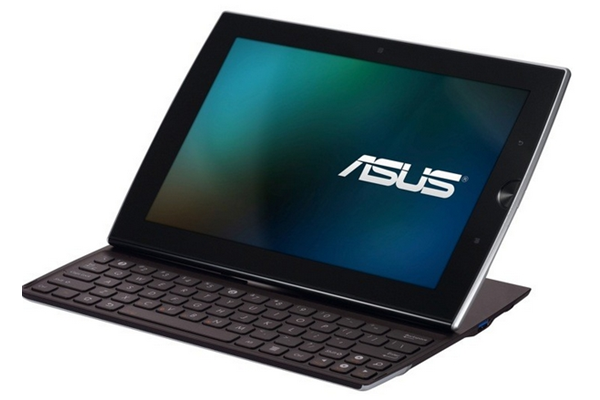
Asus Eee Pad Slider More Expensive Than Transformer?

With the official launch of the Asus Eee Pad Transformer today, those looking to grab the part-tablet-part-netbook will find them delivered to stores within the week, according to Asus product specialist, Beryl Lee.Those hanging out for the Eee Pad Slider which integrates the keyboard and tablet into one solid unit could be waiting until October, and could possibly be forking out more.

The Eee Pad Slider “will generally be the same as the Transformer [in terms of tech specs] but in a slimmer form factor,” said Beryl. That includes price, which she added should be more expensive than the Transformer if not the same price.

But with an anticipated release around the beginning of October, a lot can still change.

The Eee Slate, on the other hand, which began selling in April for $1499, has been a big seller for Asus in Australia, as “sales right now are really good, even with the very high price point,” said Lee.

Asus still sees a future for netbooks despite the suggested success of these tablets and its Transformer so far overseas, with the two types of products working on “two different markets.”

“Netbooks and tablets are two different markets. The netbook is a Windows platform and our tablets are more for mobility and entertainment. So for Asus, we will still sell netbooks separately.”


One of the key differences is that the tablets are “designed for ease of use.”

“Users who haven’t used Android before are afraid of moving to a touch screen keyboard, so they need something physical. We did surveys which found that 33 percent of people were interested in buying a physical keyboard for a tablet.”

Asus is now looking to mimic Apple’s success on the content side of its technology, going with its own content service to go with its customised user interface, dubbed @Vibe, to deliver “rich media content like Apple.”

There’s also its own cloud service called MyCloud that will be free for the first year and “around $50 for 200 gigabytes after that – but we’re not sure, that might change over the next year.” Just with the Slider’s pricing and release date, everything’s still up in the air.

Back to the Transformer’s availability, the keyboard dock will begin selling on its own (for those who buy a tablet by itself and decide on going for the dock later on) this July, and should be the same price as it is in the current bundle.

The Transformer comes in two options – a 32GB and 16GB tablet. While the 32GB is only available with a dock bundled, coming to a total of $799, the 16GB can be bought as a standalone product for $599.